Camera Studio
Help Center
Troubleshooting, advanced guides, and support to keep your
sessions smooth
How to Use Camera Studio
Learn how to connect your camera, explore features, and streamline your workflow.
Support FAQs
Find quick answers to fix camera issues and get started smoothly with Camera Studio.
Camera Studio needs permission to use your camera.
If you're seeing a message like "Camera Not Detected"
- Click “Allow Camera” in the popup.
- Make sure your browser has camera permissions enabled.
This usually happens if you denied camera access earlier.
To fix it:
- Click the icon next to the address bar
- Find Camera and toggle access on.
- Refresh the page to apply changes.
This means another app (like Zoom or Meet) is using the camera.
Depending on the situation:
- Close other apps using the camera and refresh Camera Studio.
- If you have multiple cameras, use the dropdown to switch to a different one.
- If you're trying to change resolution or ratio, but can't, it's likely locked because another app is using the camera. Close that app and refresh.
No
This app is not a replacement for Google Meet, Zoom or Microsoft Teams. It’s designed to run alongside these platforms, allowing you to share your document camera view during a call.
Dedicated controls for a better presentation
A document camera gives you dedicated controls such as focus, zoom, and exposure that are not available in standard webcams.
No
This is a web-based PWA (Progressive Web App) that runs directly in the Chrome browser. You can optionally install it to your chromeOS device for quick access
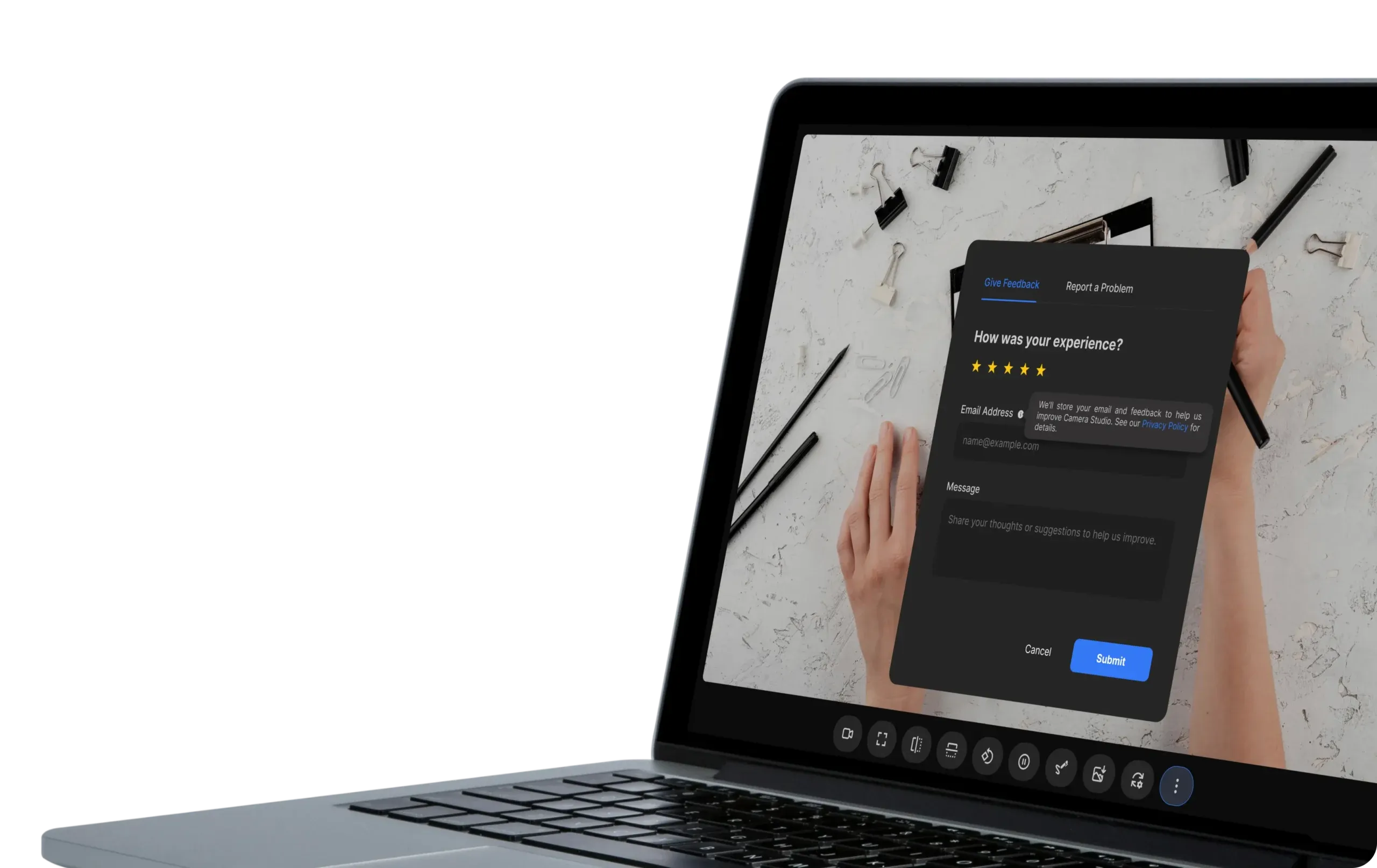
Help Us Improve with
In-App Feedback
Easily share your thoughts or report problems
all without
leaving the app.
Share general feedback anytime
Report issues and optionally attach
images (up to 5MB)
Your feedback helps us build better.